i-Ready Diagnostic Data Tracker: Placement Levels, Scale Scores, and Growth Explained
By David's Data Warehouse · · 5 min read
After each i-Ready Diagnostic window, teachers get a lot of numbers: scale scores, placements, percentiles, domain results, and growth targets. The on-screen reports are useful, but most teachers still want their own i-Ready data tracking sheet, one place where a whole class's fall, winter, and spring results sit side by side. This guide explains what the main i-Ready numbers mean and how to track them without getting lost.
What the i-Ready Diagnostic is
The i-Ready Diagnostic, from Curriculum Associates, is an adaptive assessment in Reading and Math. "Adaptive" means questions get harder or easier based on the student's answers, so two students in the same class can see very different questions. Many schools give it three times a year: beginning of year (BOY), middle of year (MOY), and end of year (EOY).
Because it adapts, the Diagnostic reports results on a single scale across grades, which is what makes growth tracking possible.
The numbers worth tracking
Scale score
The overall scale score is the core number. i-Ready scale scores run from 100 to 800 and continue across grade levels, so you can compare a student's fall and spring scores directly. Growth is simply the later score minus the earlier one.
Overall relative placement (the "levels" in i-Ready)
The question teachers search most is "what are the levels in i-Ready?" The overall relative placement compares a student's performance with expectations for their grade. i-Ready reports use five placement levels:
- Mid or Above Grade Level
- Early On Grade Level
- 1 Grade Level Below
- 2 Grade Levels Below
- 3 or More Grade Levels Below
The first two together are usually what people mean by "on grade level." Placement depends on the student's grade and the time of year, which is why you should record the placement exactly as i-Ready reports it rather than guessing it from the scale score.
Domain placements
i-Ready also reports results by domain. In Reading these include Phonological Awareness, Phonics, High-Frequency Words, Vocabulary, Comprehension: Literature, and Comprehension: Informational Text. In Math they include Number and Operations, Algebra and Algebraic Thinking, Measurement and Data, and Geometry. Domains help you form small groups: two students with the same overall placement can need very different instruction.
Typical Growth and Stretch Growth
i-Ready gives each student two annual growth measures:
- Typical Growth is the average annual growth for students at the same grade and starting placement.
- Stretch Growth is a more ambitious target designed to move students who start below grade level toward proficiency, or to keep on-level students on track for higher levels.
Tracking progress toward these goals at MOY is one of the most useful things a tracker can show, because it gives you time to adjust before spring.
Setting up an i-Ready data tracking sheet
A practical class tracker needs one row per student and these columns for each subject:
- Student name (or ID) and grade
- BOY scale score and BOY placement
- MOY scale score and MOY placement
- EOY scale score and EOY placement
- Growth BOY to MOY and BOY to EOY
- Placement levels moved (for example, from 2 Below to 1 Below = +1)
- Notes or small group
Use a dropdown (Excel: Data > Data Validation > List) for the placement columns so every entry matches one of the five official labels. That makes counting with COUNTIF reliable. Add Conditional Formatting so the placement cells color themselves, from green for Mid or Above to red for 3 or More Below.
For growth, a formula like =IF(AND(C2<>"",E2<>""),E2-C2,"") keeps the cell blank until both scores exist. To count placement-level movement, give each label a number (Mid or Above = 5 down to 3+ Below = 1) in a small lookup table and subtract.
A one-page class summary
Most data meetings need the same handful of numbers for each window:
- Number and percentage of students at each placement level
- Percentage on grade level (Early On plus Mid or Above)
- Average scale score and average growth
- Number of students who moved up at least one placement level
Put those on a separate Summary tab with a simple bar chart for Reading and Math, and set it to print on one page. That page is what you bring to a PLC or data meeting.
Paste from the export instead of typing
If you have access to i-Ready's Diagnostic Results export, you can copy the scale score and placement columns into your tracker and use Paste Special > Values, which keeps the export's formatting from overwriting your formulas. Check that student order matches before you paste, or match by student ID.
The full export (for example "All Diagnostics YTD" as a CSV) also contains percentiles, domain placements, Lexile measures for Reading, and growth targets. If your access is limited, ask your school's i-Ready administrator; some export options are only available to certain roles.
Reading the results carefully
- Look at growth, not only placement. A student can stay "2 Grade Levels Below" and still have strong growth. Placement expectations rise during the year.
- Watch for rushed tests. Very short test durations or sudden score drops can signal a student who rushed. Many schools retest in those cases; follow your school's guidance.
- Combine with classroom evidence. The Diagnostic is one data point. Use it with classwork, other screeners, and teacher judgment.
- Confirm before high-stakes decisions. Any homemade tracker is an organizer, not an official report; check i-Ready before placement or intervention decisions.
Free i-Ready tracker
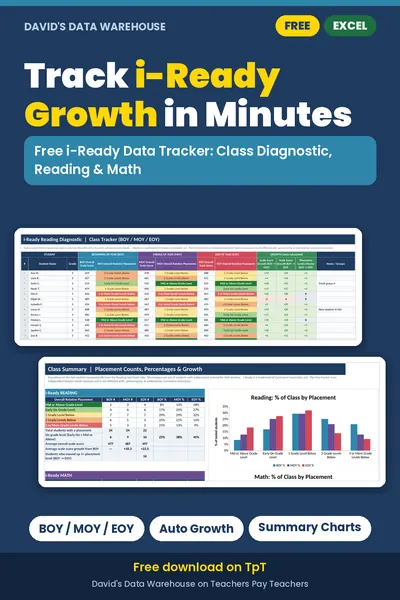
If you'd rather not build this from scratch, download the Free i-Ready Data Tracker on Teachers Pay Teachers. It's an Excel workbook for one class (up to 30 students) with Reading and Math tabs, dropdowns for the five placement levels, automatic color-coding, growth columns, and a print-ready Summary with charts. It records the placements you enter and never guesses them from scores. More details are on our free resources page.
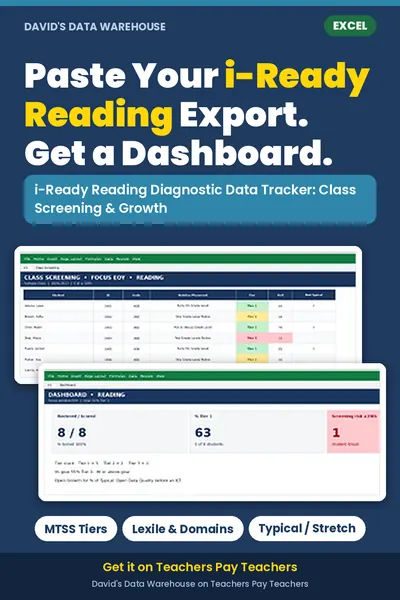
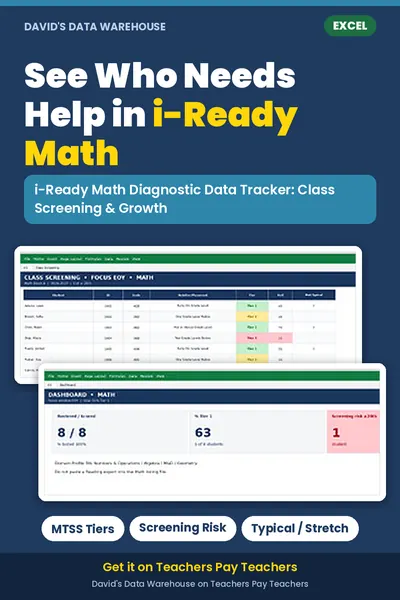
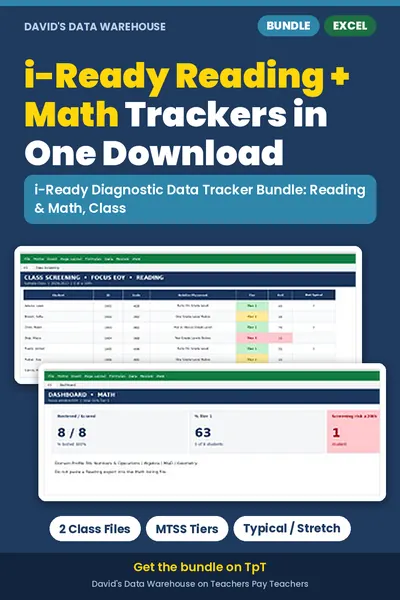
For a deeper view, the paid class trackers accept the whole Diagnostic Results export in one paste and add MTSS tiers, percentiles, domain profiles, and growth versus Typical and Stretch: i-Ready Reading Diagnostic Data Tracker, i-Ready Math Diagnostic Data Tracker, or both in the Reading + Math bundle. School leaders can use the building-level dashboards on the products page.
Your school also gives DIBELS 8? See how to set up a DIBELS 8 data tracking sheet.
Not affiliated with or endorsed by the test publishers. i-Ready® is a registered trademark of Curriculum Associates, LLC. Always confirm scores and cut points with official reports.