DIBELS 8 Data Tracking Sheet: How to Track Composite Scores and Benchmark Levels
By David's Data Warehouse · · 6 min read
If your school gives DIBELS 8 three times a year, you already have plenty of data. The hard part is seeing it all in one place: which students moved up a benchmark level since fall, which ones are still well below, and what your class looks like next to the rest of the grade. A simple DIBELS 8 data tracking sheet fixes that. This guide covers what to track, how to lay it out, and the mistakes that make DIBELS spreadsheets misleading.
What DIBELS 8 measures (quick refresher)
DIBELS 8th Edition (Dynamic Indicators of Basic Early Literacy Skills) is a set of short, timed measures of early literacy skills for kindergarten through grade 8, developed at the University of Oregon. Schools usually give it as a universal screener at three benchmark windows: beginning of year (BOY), middle of year (MOY), and end of year (EOY). Many districts give and score it through Amplify's mCLASS platform; others use the University of Oregon's DIBELS Data System or paper scoring booklets.
The individual measures, often called subtests, include:
- Letter Naming Fluency (LNF)
- Phonemic Segmentation Fluency (PSF)
- Nonsense Word Fluency (NWF), scored as Correct Letter Sounds and Words Recoded Correctly
- Word Reading Fluency (WRF)
- Oral Reading Fluency (ORF), scored as words read correctly and accuracy
- Maze, a reading comprehension measure
Not every measure is given at every grade. Which ones your students take depends on their grade and the time of year, so check your administration guide or your mCLASS reports for the exact list.
The composite score: the number to track first
The DIBELS 8 composite score combines a student's subtest scores into one overall indicator of reading risk. It is calculated with a specific weighting that differs by grade and benchmark window, so it is not the same as averaging or adding up the subtests yourself. Your mCLASS reports, the DIBELS Data System, or the official scoring guidance give you the composite. Copy that number; do not try to rebuild it.
The composite is then compared with benchmark goals published by the University of Oregon for each grade and window. That comparison places each student in one of four levels:
- Above Benchmark: very likely on track
- At Benchmark: likely on track with core instruction
- Below Benchmark: some risk; often a candidate for strategic support
- Well Below Benchmark: higher risk; often a candidate for intensive support
Because the cut points change by grade and window, a composite of the same value can be At Benchmark in one grade and Below in another. That's why a good tracker needs to know each student's grade, and why it should use the published goals instead of a single cut-off you typed once.
What to put in a DIBELS 8 data tracking sheet
You can build a useful tracker with a handful of columns. Keep it to one row per student:
- Student name or ID: use whatever your school's privacy rules allow.
- Grade: this determines the benchmark goals.
- BOY composite, MOY composite, EOY composite
- BOY level, MOY level, EOY level: Above, At, Below, or Well Below.
- Gain: for example MOY minus BOY.
- Direction: did the student move up, down, or stay in the same level?
- Optional ORF words correct, because teachers and families often ask about fluency specifically.
- Notes or group: small-group assignment, intervention, or flags such as ELL or IEP.
Then add a small summary area at the top or on a second tab: the number and percentage of students in each level for each window. That one table answers most data-meeting questions ("How many students are at or above benchmark now compared with September?").
A simple Excel layout
Here's a layout that stays readable all year:
- Columns A-B: Student, Grade
- Columns C-E: BOY, MOY, EOY composite
- Columns F-H: BOY, MOY, EOY level, color-coded with Conditional Formatting (a common convention is blue for Above, green for At, yellow for Below, and red for Well Below)
- Column I: Gain, with a formula such as
=IF(AND(C2<>"",D2<>""),D2-C2,"")so blanks stay blank - Column J: Notes
To count students in a level, use COUNTIF, for example =COUNTIF(F2:F31,"At Benchmark"). Divide by the number of tested students (=COUNTA(C2:C31)) to get a percentage. Freeze the top row so headers stay visible, and leave untested students blank instead of typing zero, because a zero would drag down averages and could be read as a real score.
If you'd like to learn the general spreadsheet skills behind this (dropdowns, conditional formatting, protecting formulas), see our guide on how to track student data in Excel.
Common mistakes to avoid
1. Mixing up the composite and a subtest
The most common error is typing an ORF or NWF score into the composite column. The numbers can look similar in size, and the result is a level that's wrong. Label your columns clearly: "Composite (not ORF)".
2. Using one cut score for every grade
A homemade sheet often uses a single "benchmark" number. DIBELS 8 goals are grade- and window-specific, so the level has to look up the right goal for the right grade.
3. Comparing levels across windows without context
A student who stays "Below Benchmark" from BOY to MOY may still have grown, because goals rise during the year. Track the composite gain alongside the level so you can see growth that the level alone hides.
4. Treating the screener as a diagnosis
DIBELS 8 is a screening and progress-monitoring tool. A Well Below result tells you a student needs a closer look; it doesn't tell you exactly why. Use the subtests, classroom work, and diagnostic assessments to decide on instruction.
5. Re-typing everything every window
Set up your roster once at BOY and add MOY and EOY scores to the same rows. Re-building the sheet each window is where most typing errors start.
Using the tracker in a data meeting
A tracker earns its keep in the meeting. Before you walk in, check three things:
- Level distribution: the count and percentage of students Above, At, Below, and Well Below, compared with the last window.
- Movers: students who moved up a level (worth celebrating) and students who moved down (worth discussing).
- Students to review: Well Below students without an intervention noted, and students with negative gains.
Bring the summary, not the whole spreadsheet. Then confirm any high-stakes decision against the official report in mCLASS or the DIBELS Data System.
Type-in tracker or export tracker?
There are two practical ways to get data into a sheet:
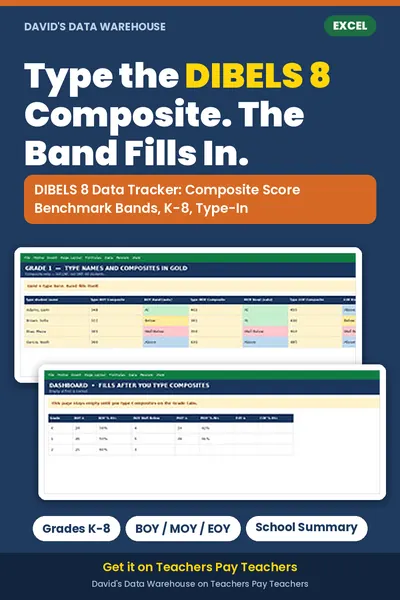
- Type in the composite. This works best for classroom teachers who see results on the iPad or class summary and only need the composite for one class. It's quick and needs no export permissions.
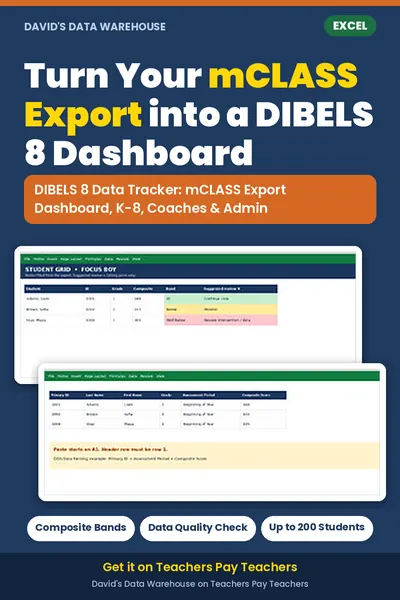
- Paste an export. Coaches and administrators who can download a CSV (for example mCLASS "Download Your Data" or DIBELS Data System "Data Farming") can paste the whole file and skip the typing. This scales to a grade or a school.
If you don't want to build the formulas and benchmark lookups yourself, David's Data Warehouse has two ready-made Excel options. The DIBELS 8 Data Tracker (Type-In, K-8) fills in the benchmark band from the University of Oregon composite goals when you type a composite, with grade tabs, gain tracking, and a school summary. The DIBELS 8 mCLASS Export Dashboard is built for coaches and admins who paste a CSV export. Both are Excel files and are not official Amplify or University of Oregon forms.
Also tracking i-Ready? Try the free i-Ready class tracker, or read how to track i-Ready Diagnostic placement levels and growth.
Quick checklist
- One row per student; grade column filled in
- Composite only in the composite columns
- Levels based on grade- and window-specific goals
- Gain column next to the level
- Blanks for untested students, not zeros
- Summary counts per level per window
- Stored where your district allows student data
Not affiliated with or endorsed by the test publishers. DIBELS® and mCLASS® are trademarks of their respective owners (University of Oregon; Amplify Education, Inc.). Always confirm scores and cut points with official reports.