How to Track Student Data in Excel: A Step-by-Step Guide for Teachers
By David's Data Warehouse · · 4 min read
Teachers collect data all year: screeners, unit tests, reading levels, attendance, behavior, and more. Excel is free for many teachers through their district's Microsoft account, and with a few features it can turn that data into something you can actually use. This step-by-step guide shows how to build a student data tracker in Excel from scratch, using features that also work in Excel for the web.
Step 1: Decide what question the tracker answers
Before you open Excel, write down the one question you want the sheet to answer. For example: "Which students are below benchmark, and are they growing?" or "Who has missed more than five days this month?" A tracker that answers one question well is more useful than one that holds everything. You can always add a tab later.
Step 2: Set up one row per student
The golden rule of spreadsheet data is one row per student, one column per piece of information. Put headers in row 1, for example:
- A: Student
- B: Grade or class period
- C: Fall score
- D: Winter score
- E: Spring score
- F: Fall level
- G: Growth
- H: Notes
Avoid merged cells inside the data area, and don't leave blank rows between students; both break sorting, filtering, and formulas. Then use View > Freeze Panes > Freeze Top Row so headers stay visible as you scroll.
Tip: turn the range into a table with Insert > Table (or Ctrl+T). Tables add filter buttons, banded rows, and formulas that fill down automatically when you add a student.
Step 3: Use dropdowns for consistent entries
Counting only works if everyone types the same thing. "At Benchmark", "at benchmark", and "At benchmark " (with a trailing space) can look identical but cause errors. Use dropdowns instead:
- On a separate tab named Lists, type your options in a column (for example: Above, At, Below, Well Below).
- Select the cells where the level goes, such as F2:F31.
- Choose Data > Data Validation, set Allow to List, and point the Source to your list.
Now each cell has a dropdown, and you can change the wording in one place later.
Step 4: Color-code with conditional formatting
Color makes patterns jump out. Select the level column, then choose Home > Conditional Formatting > Highlight Cells Rules > Text that Contains and assign a color to each level. For numbers, Color Scales gives a quick heat map, and New Rule > Use a formula handles anything custom, such as =G2<0 to highlight negative growth.
Pick colors with enough contrast, and don't rely on color alone. Keep the text label in the cell so the sheet still makes sense when printed in black and white.
Step 5: Add formulas that do the math
A few formulas cover most teacher needs:
- Growth:
=IF(AND(C2<>"",D2<>""),D2-C2,"")subtracts fall from winter, but only when both scores exist. - Count by level:
=COUNTIF(F2:F31,"Below") - Percentage by level:
=COUNTIF(F2:F31,"Below")/COUNTA(F2:F31), formatted as a percentage - Average of tested students only:
=AVERAGE(C2:C31)ignores blank cells, which is why you should leave untested students blank rather than typing 0. - Count with two conditions:
=COUNTIFS(B2:B31,"Period 2",F2:F31,"Below") - Attendance rate: days present divided by days enrolled, for example
=I2/J2 - Look up a score band:
XLOOKUP(orVLOOKUPwith approximate match) against a small table of cut points
Step 6: Build a summary tab
Create a second tab called Summary with the counts and percentages from Step 5 for each testing window. Add a clustered bar chart (Insert > Chart) showing how many students are in each level at fall, winter, and spring. This tab is what you print for a data meeting or PLC; set it to fit on one page with Page Layout > Scale to Fit.
Step 7: Protect your formulas
One accidental keystroke can erase a formula. To prevent that:
- Select the cells where you'll type (names and scores), open Format Cells > Protection, and uncheck Locked.
- Choose Review > Protect Sheet. You can leave the password blank so you can unprotect it any time.
Now only the input cells can be edited.
Step 8: Paste data the safe way
When you copy data from an online platform or a CSV export, use Paste Special > Values (Ctrl+Alt+V, then V). That pastes only the numbers and text, without overwriting your formatting or formulas. Always check that students are in the same order, or match by student ID.
Step 9: Keep student data private
- Save the file only where your district allows student data, typically a district-managed OneDrive or Google Drive.
- Share with specific colleagues instead of "anyone with the link."
- Use student IDs or initials in any copy you share outside your team.
- Remove last year's students when you start a new year, following your district's retention rules.
Step 10: Reuse it every year
Once your tracker works, save a blank copy as a template (File > Save As > Excel Template) before you enter any students. Next year you'll start in minutes.
Excel or Google Sheets?
Everything above also works in Google Sheets, with small differences in menus. Files built in Excel usually open in Sheets, but complex conditional formatting, dropdowns, and charts can behave differently. Use whichever your school supports, and test before you rely on it.
Want a head start?
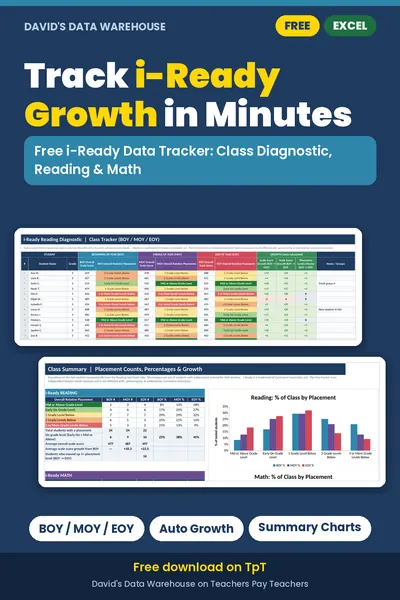
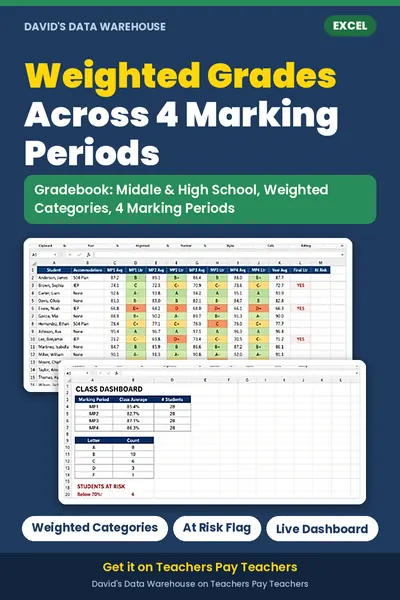
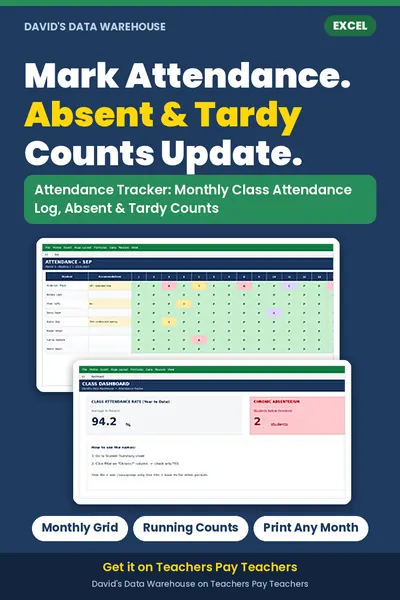
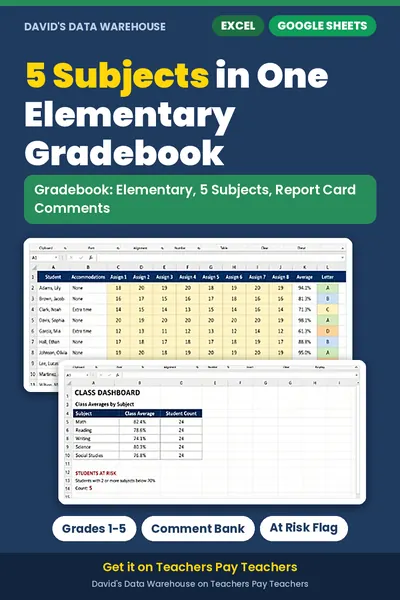
If you'd rather start from a working file, download the Free i-Ready Data Tracker (details on our free resources page). It uses the same techniques: dropdowns, color-coding, protected formulas, growth columns, and a printable summary. David's Data Warehouse also has an Elementary Gradebook, a Middle & High School Weighted Gradebook, an Attendance Tracker, and assessment trackers on the products page.
Next, try applying these steps to a real assessment: DIBELS 8 data tracking sheet, i-Ready Diagnostic tracker, or Acadience Reading composite score.